Setting the Stage and Assumptions:
- Dell R730XD with SAS/SATA Backplane
- Dell R730XD with Intel CPUs
- Dell HBA330 flashed with “IT Mode” LSI Firmware, allows for disk passthrough.
- 8x 16TB Drives SAS Drives
Visit post about my BIOS/Firmware settings I have set for my Dell R730XD
Section #1 – Proxmox Settings
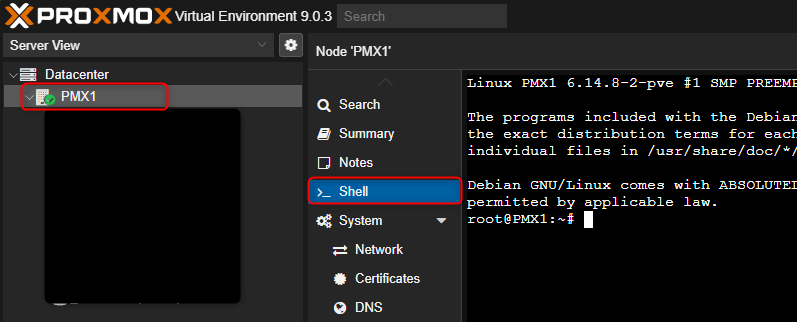
- Logon to your Promox Server and select the Dell Server Host. Then click on Shell.
2. You may not need all of these settings, but this worked for me. If you are on AMD you will need to find the IOMMU value name for that.
3. Edit this file nano /etc/default/grub
3. Change Line From:
GRUB_CMDLINE_LINUX_DEFAULT=”quiet”
4. Change Line To:
GRUB_CMDLINE_LINUX_DEFAULT=”quiet intel_iommu=on iommu=pt”
5. (Save/Exit)
6. run: update-grub
7. Edit this file nano /etc/modules
8. Add the following lines:
vfio
vfio_iommu_type1
vfio_pci
vfio_virqfd
9.(Save/Exit)
10. run: update-initramfs -u -k all
11. Reboot Proxmox
Section #2 – Settings that need to be set within Promox GUI
1. After the reboot of the Promox Server.
2. Click on “Datacenter” then on the right-hand menu scroll down and click on “Resource Mappings“
3. Select “Add”

4. Give your PCI Mapping a Name. I gave mine “DELL-R730XD-HBA330-CTRL”
5. Select your HBA Controller, in my case since it is flashed with custom “IT Mode” LSI firmware it showed up like the below.
6. Then click “Create”

Your device as listed

Section #3 – Create your TrueNas Scale VM
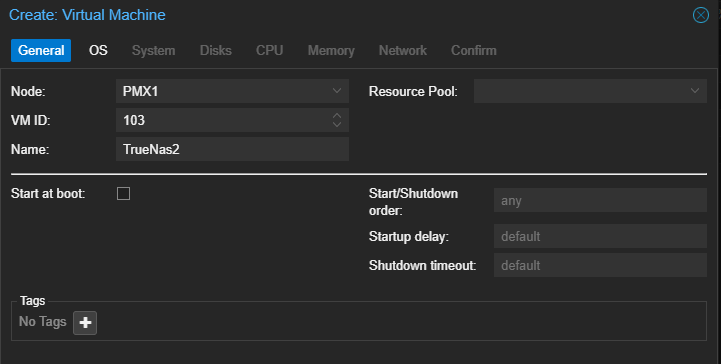
General
1. Give it a name. In my case I am calling it TrueNas2
OS
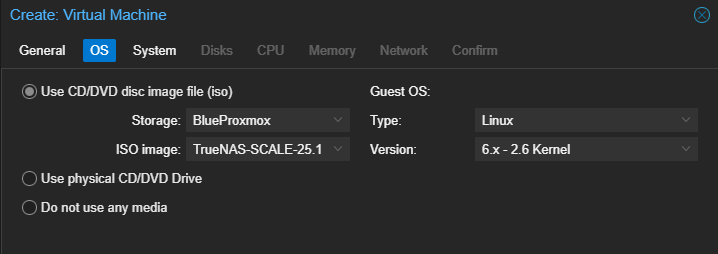
2. Mount the TrueNas Scale ISO Image and ensure Guest OS is set to Linux.
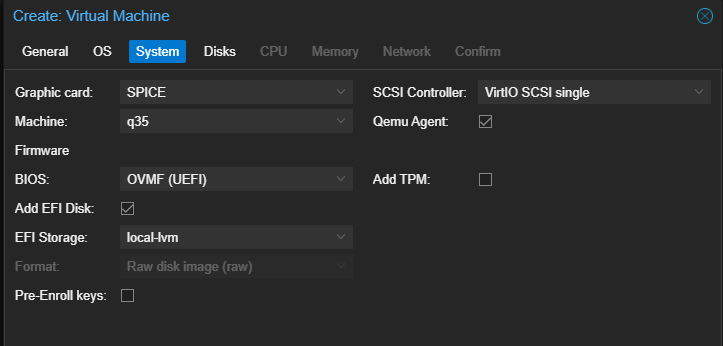
System
3. Graphic Card: set “SPICE” (I had garbled pixels until this was set)
4. Machine: set “Q35” (from my understanding this is required for Passthrough)
5. BIOS: set “OVMF (UEFI)”
6. EFI Disk: Enabled
7. EFI Storage: Choose a location of EFI for VM
8. Pre-Enroll keys: Uncheck (Not a Windows Machine)
9. QEMU Agent: Enabled
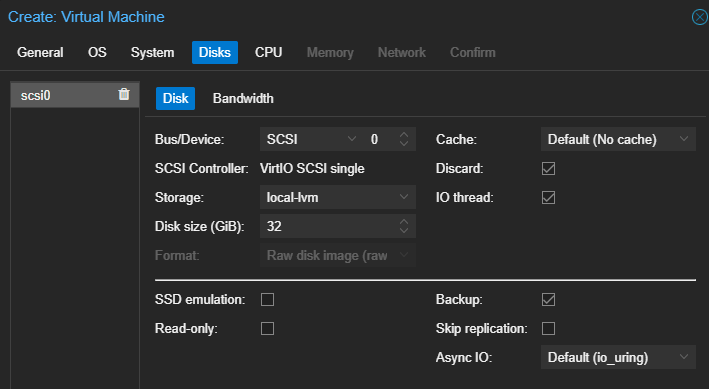
Disks
10 Storage: Choose your storage
11. Disk Size: 32GB-64GB
12. Discard: Enabled (Set to Enabled if storage is SSD)
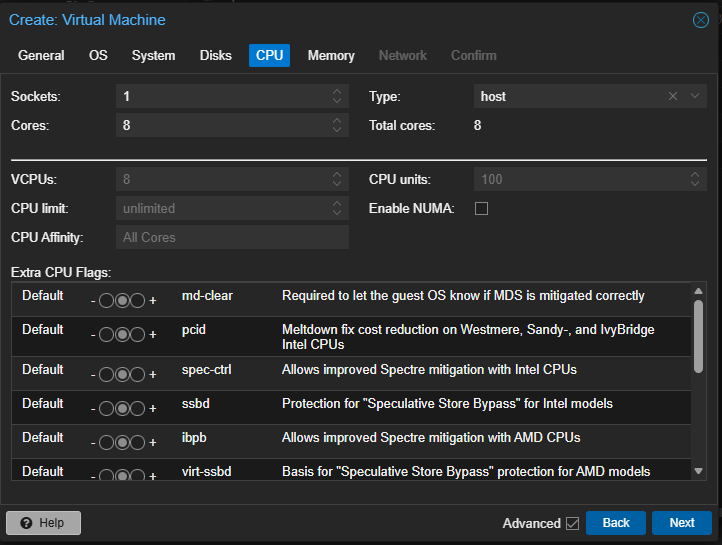
CPU
13. Sockets: 1
14. Cores: 8 (Min 2)
15. Type: Host (host ensures all technologies and cpu instructions are available)
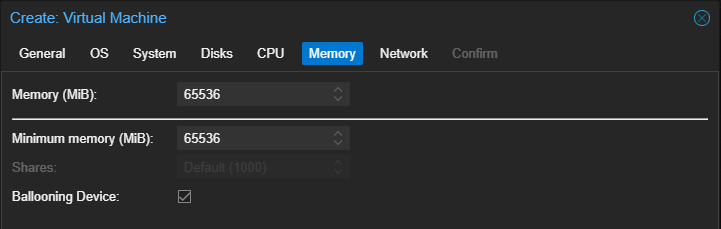
Memory
16. 64GB = 65536MIB (based on my requirements)
Network
17. I may no changes to this screen and left the defaults.
18. Click “OK” to start the creation of the VM.

Section #3 – Add PCI Device / HBA Passthrough to Virtual Machine
19. Once the machine is created, select the machine and from the right menu select “Hardware”
20. Click on “Add” > “PCI Device”
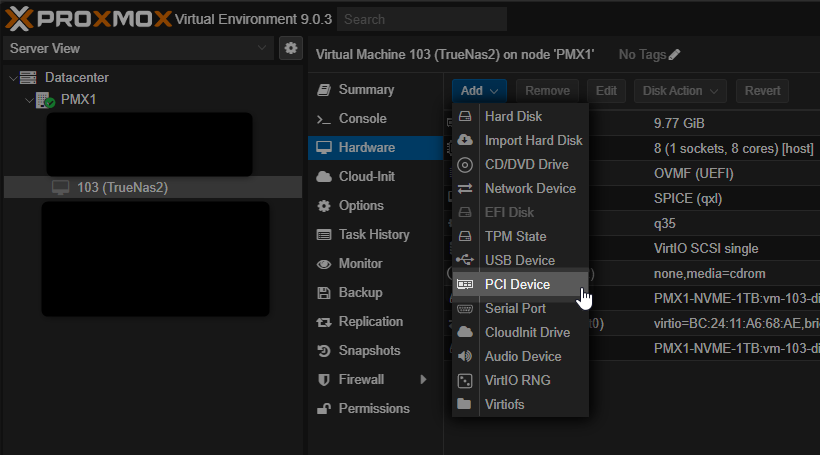
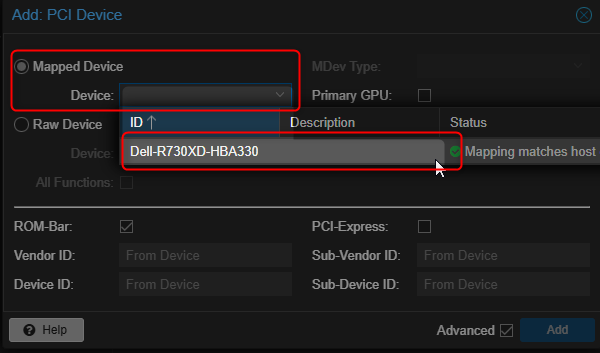
21. Under “Mapped Device” select the device listed, the name of the device should be the same as you selected in Section #2 – Step 4
22. Click “Add”